![PV_LOGO_HORZ_RGBHEX_LIGHT-1.png]](https://info.primevacations.com/hs-fs/hubfs/PV_LOGO_HORZ_RGBHEX_LIGHT-1.png?height=40&name=PV_LOGO_HORZ_RGBHEX_LIGHT-1.png)
Campaign Methodology & How to select a Campaign
Each campaign in HubSpot represents a single promotion or initiative for a single brand. All assets related to that brand's version of a promotion, such as emails, landing pages, social posts, and forms, are attached to their brand-specific campaign.
This structure makes it possible to report on:
- How one brand performed during a specific promotion
- How a promotion performed across all brands
- How do different campaign categories (Promotions, Seasonal, Lifecycle, etc.) compare over time
Campaigns are most successful when they can be bucketed by theme. A theme is a marketing indicator or CTA used to market to the guest (or in some cases, the owner). Themes can be promotions, inventory type, amenity, and the like. PRIME has six primary campaign buckets and several secondary buckets determined by the primary buckets. Here's how you determine what your campaign should be:
Primary Campaign - Secondary Campaign - Brand
Step 1: Select your Primary Campaign Bucket
|
Priority |
Campaign Bucket |
Use This Bucket When… |
|
1st |
Promotions |
Discount, deal code, or urgency-based offer |
|
2nd |
Inventory |
Showcasing specific properties (i.e. new inventory) |
|
3rd |
Seasonal |
Tied to a predictable booking window or time of year |
|
4th |
Amenity |
Targeting guests by property feature (pet-friendly, pool, etc.) |
|
5th |
Brand |
Warm, relationship-building content, aspirational |
|
Always-on |
Lifecycle |
Welcome series, pre-arrival, confirmations, re-engagement |
How to use the priority order
Start at the top of the list. If your campaign includes a discount or promo code, it is Promotions — even if it also has a seasonal angle. Only move down the list if the higher-priority bucket does not apply.
Step 2: Pick your Secondary Campaign Bucket
Once you have selected the Primary Category, choose the Secondary Category that best describes the specific angle, promotion name, or theme. The available options depend on which Primary Category you selected. It is possible that the Secondary bucket does not yet exist, especially if it is a brand-new campaign you are creating.
Examples of Secondary Campaign Buckets:
|
Primary Category |
Secondary Category Options |
|
Promotions |
LASTMINUTE, Flash Sale, Extended Stay, Loyalty Offer, Black Friday |
|
Inventory |
New Inventory, Key Resorts, Beachfront |
|
Seasonal |
Winter, Spring, Summer, Fall |
|
Amenity |
Pet-Friendly, Private Pool |
|
Brand |
AMIL, AMIA, AMV, LKV, SKLRP, TSA, PRIME |
|
Lifecycle |
Welcome Series, Anniversary |
Step 3: End with the Brand
End your Campaign name with a Brand. The Brand will be either PRIME, AMIL, AMIA, AMV, LKV, SKLRP, or TSA.
Examples:
|
Primary Category |
Secondary Category |
Brand |
Full Campaign Name |
|
Promotions |
LastMinute |
AMIL |
Promotions – LASTMINUTE – AMIL |
|
Seasonal |
Summer |
LKV |
Seasonal – Summer – LKV |
|
Amenity |
PetFriendly |
TSA |
Amenity – PetFriendly – TSA |
|
Lifecycle |
WelcomeSeries |
PRIME |
Lifecycle – WelcomeSeries – PRIME |
Assets: Once the campaign is created, all assets related to that campaign should be tied to it. Emails, landing pages, CTAs, social media, forms, workflows, etc. can all have a campaign selected, allowing for full circle reporting on campaign performance!
Campaign Custom Fields
In addition to the strict naming convention of campaigns, we know that errors can happen, so the following custom fields have been created in campaigns and are required upon campaign creation. This ensures proper reporting of campaigns so long as assets are tied to the right campaign.
Associated Brand
A single-select dropdown that identifies which brand owns this campaign. Every asset attached to this campaign should belong to this brand.
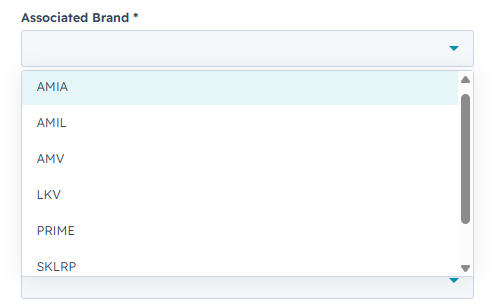
Available values: PRIME, AMIL, AMIA, AMV, LKV, SKLRP, TSA
⚠️ Important: HubSpot's legacy Brands field (powered by the Brands add-on) is being discontinued. The Associated Brand custom property replaces it and is the correct field to use going forward for all brand attribution and reporting. The Brand's legacy field should be set to PRIME Vacations temporarily.
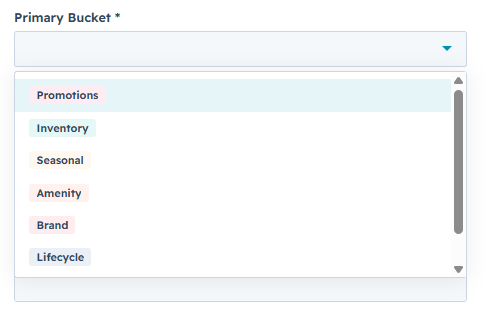
Primary Bucket
A single-select dropdown that defines the campaign category.
Secondary Bucket
A single-select dropdown that defines the specific subtype within the Primary Bucket. The options available depend on which Primary Bucket is selected.
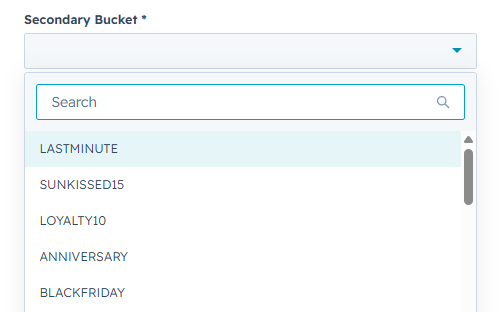
Examples: LASTMINUTE, SUNKISSED15, Summer, Pet-Friendly, Welcome
Primary and Secondary Bucket Associations
| Primary Bucket | Secondary Buckets |
|---|---|
| Promotions | LASTMINUTE, SUNKISSED15, LOYALTY10, ANNIVERSARY, BLACKFRIDAY, HERO10, LOCAL |
| Inventory | New Inventory |
| Seasonal | Summer, Winter/Snowbirds, Spring, Fall |
| Amenity | Pet-Friendly, Waterfront, Private Pool |
| Brand | PRIME, AMIL, AMIA, AMV, LKV, SKLRP, TSA* |
| Lifecycle | Welcome |
| BD | PRIME, AMIL, AMIA, AMV, LKV, SKLRP, TSA* |
Note: BD and Brand should not be assigned a Secondary Bucket. Only their associated brand should be assigned.
Recommended Fields
While not required, the following fields are strongly recommended for every campaign. Incomplete campaigns will limit your ability to filter by date and measure performance over time.
Campaign Start Date
Set this to the date the first asset in this campaign goes live. Used for date-range filtering in reports and the Campaign Calendar view.
Campaign End Date
Set this to the date the last asset in this campaign stops running. Leaving this blank makes it impossible to accurately filter campaigns by time period.
Campaign Status
Keep this up to date as the campaign moves through its lifecycle.
| Status | When to use |
|---|---|
| Planning | Campaign is being built, no assets live yet |
| Active | At least one asset is live |
| Complete | All assets have ended, the campaign is closed |
Assigning Assets to a Campaign
Each asset in HubSpot (email, landing page, social post, CTA) can only belong to one campaign at a time. Moving an asset to a different campaign permanently removes it from the previous one, so assign carefully.
Which campaign should an asset go in?
Always assign an asset to the campaign that matches:
- The asset's brand: matches the Associated Brand on the campaign
- The asset's promotion or initiative: matches the Secondary Bucket on the campaign
Example: An AMIL email promoting a Last Minute deal belongs in Promotions-LASTMINUTE-AMIL, not in a general AMIL campaign or a shared Last Minute campaign.
Creating a New Campaign
Follow these steps any time a new campaign shell needs to be created manually.
1. Before creating the campaign, confirm:
- Which brand does this campaign belong to?
- Which Primary Bucket does it fall under?
- Which Secondary Bucket (promotion or subtype) does it represent?
2. Use the following naming convention exactly:
[Primary Bucket]-[Secondary Bucket]-[Brand]
- No spaces between segments, use hyphens only
- Match the exact casing used in existing campaigns
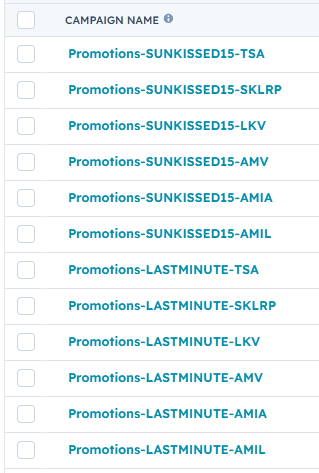
Examples:
Promotions-LASTMINUTE-AMILSeasonal-Summer-LKVLifecycle-Welcome-TSAAmenity-Pet-Friendly-AMIA
3. Select the brand this campaign belongs to from the Associated Brand field dropdown. This must match the brand in the campaign name.
4. Select the correct category from the Primary Bucket dropdown.
5. Select the correct subtype from the Secondary Bucket dropdown. The available options will depend on which Primary Bucket you selected in Step 4.
Tip: Use the Primary and Secondary Bucket Associations table as guidance.
6. Add the campaign start and end dates. If exact dates are not yet confirmed, update them once they are.
7. After saving, confirm the campaign appears in the campaigns list with all fields correctly populated before assigning any assets to it.
Common Mistakes to Avoid
1. Assigning an asset to the wrong brand's campaign: Always verify that the Associated Brand on the campaign matches the brand of the asset before assigning. Misassigned assets will appear under the wrong brand in created reports.
2. Leaving Required Fields blank: Campaigns without Associated Brand, Primary Bucket, or Secondary Bucket cannot be filtered or grouped in reports. Always complete all required fields at campaign creation.
3. Using the legacy Brands field: The Brands add-on field is being discontinued. Do not use it for new campaigns. Use the Associated Brand custom property instead.
4. Creating an "All Brands" campaign: There is no All Brands campaign. Each campaign belongs to one brand only.